Team Management

Managing Your Teams

Create and juggle multiple teams, switch between them instantly, view season stats, and celebrate milestones with achievement badges.

1 Teams Tab 2 Create a Team 3 Switch Teams 4 Edit Team Details 5 Team Stats 6 Achievement Badges
1

Open the Teams Tab

Step 1

Tap the Teams tab in the bottom nav

Open Rinkside and tap Teams in the bottom navigation bar. You'll see all your teams listed, each showing the team name and season.

🏒 Each team card shows the team name and season (e.g. "2025–26") at a glance.
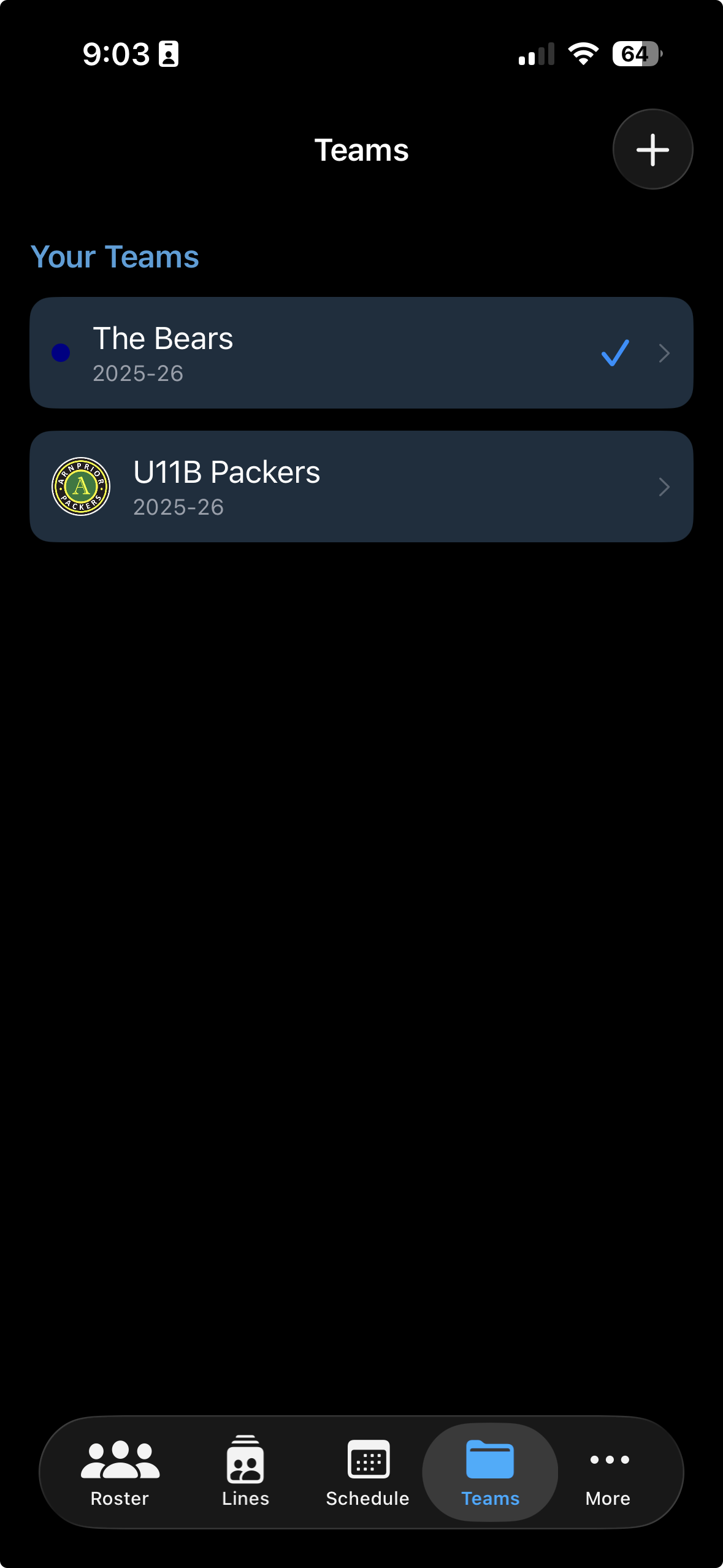
Teams tab showing team cards with player count and season
2

Create a New Team

Step 1

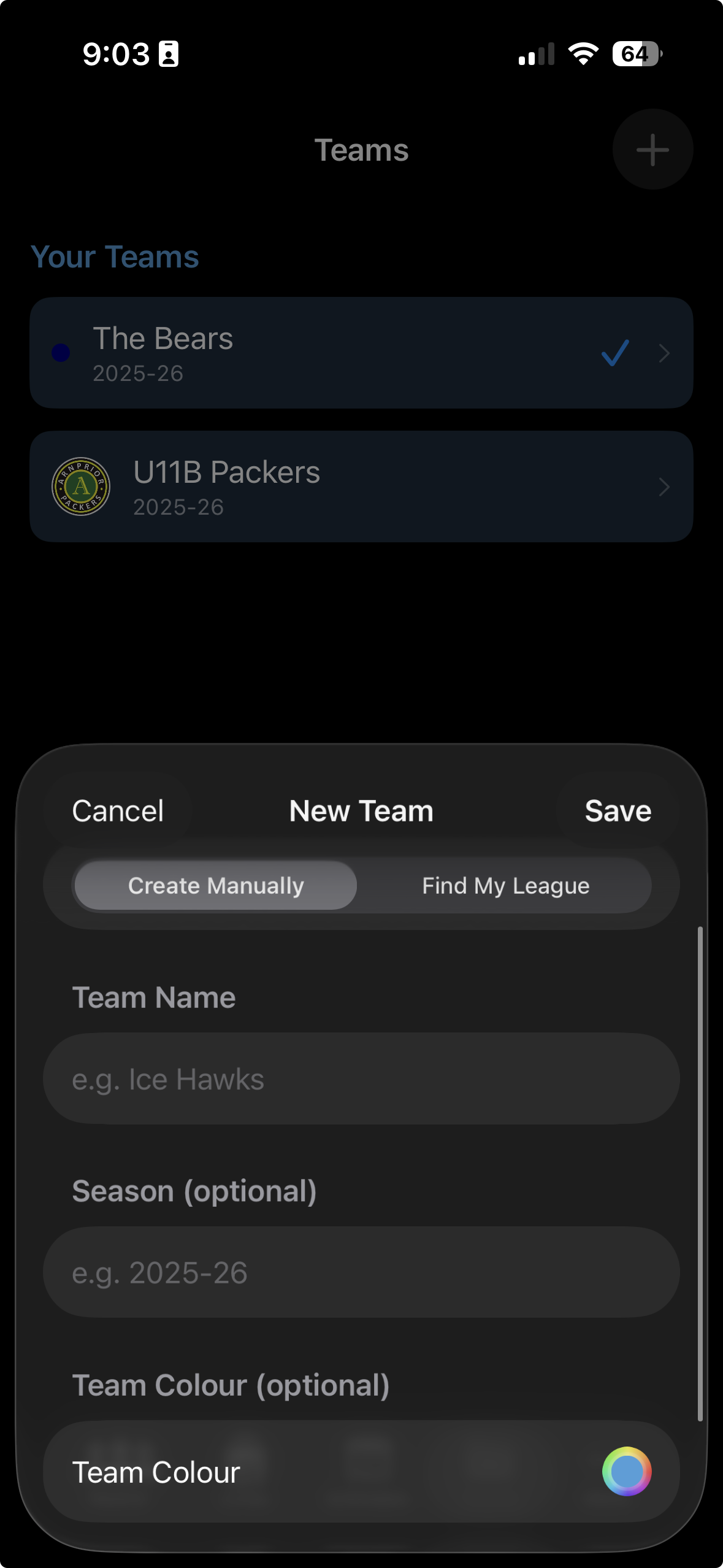
Tap the + button to start

From the Teams tab, tap the + button in the top-right corner. A sheet will appear where you can fill in your new team's details.

Create Team sheet with name, season, colour, and logo fields
Step 2

Fill in the team details and save

Enter a team name, season (e.g. "2025–26"), pick a team colour, and optionally add a logo. Tap Save when you're done.

🎨 The team colour you pick is used throughout the app to identify this team at a glance — pick something distinct if you're coaching multiple teams.
Create Team sheet with fields filled in
3

Switch Your Active Team

Step 1

Tap a team card, then select "Switch to This Team"

From the Teams list, tap a team card to open the team view. Then tap Switch to This Team to make it your active team. The app switches all views — Roster, Lines, and Schedule — to that team.

Switching teams is instant. Your lines and roster for the previous team are saved automatically — nothing is lost.
4

Edit Team Details

Step 1

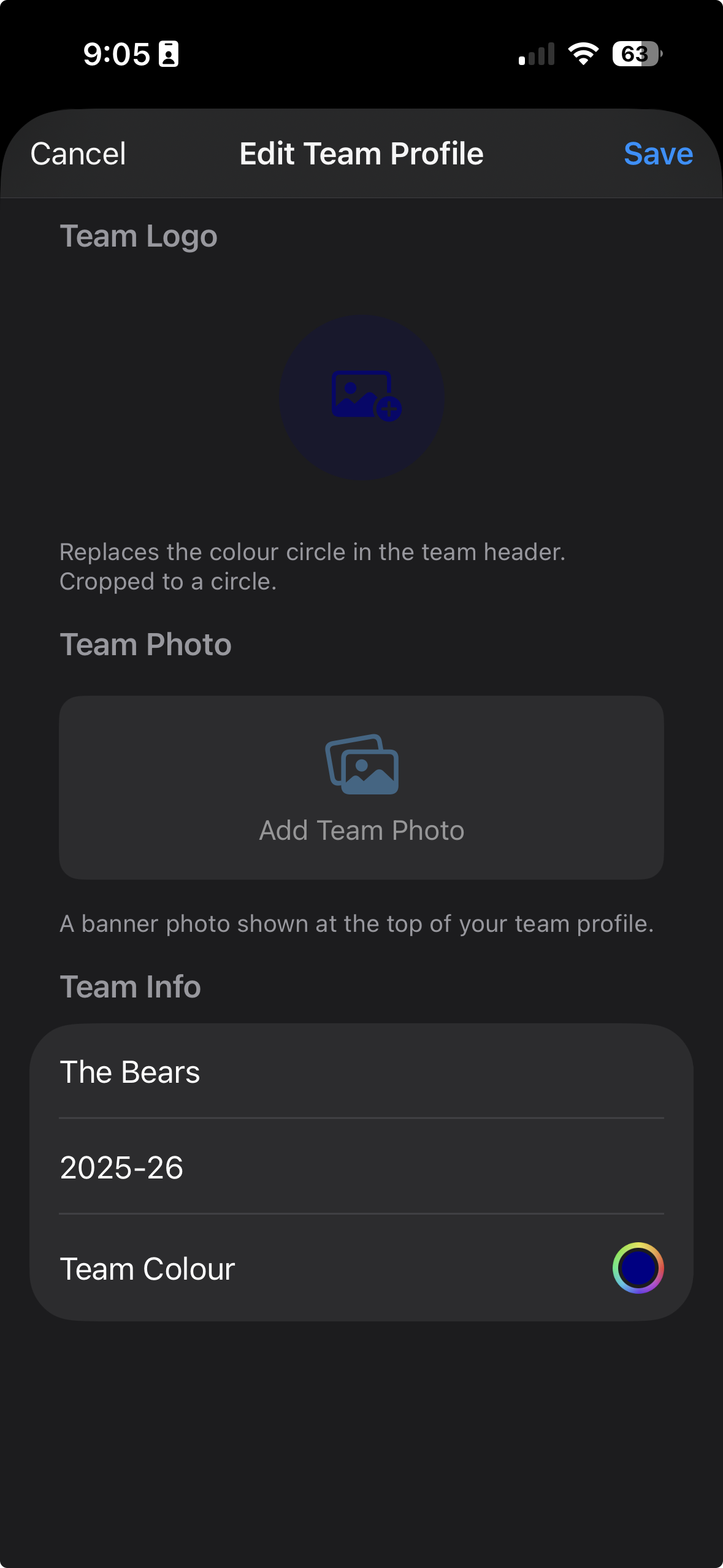
Open the team, then tap the edit icon in the top right

From the Teams list, tap a team card to open the team view. Then tap the edit icon in the top-right corner. The edit sheet opens with the current details pre-filled.

Edit Team sheet open with fields populated
Step 2

Update any field and save

Change the name, season, team colour, or logo — then tap Save. Your changes are applied immediately across the entire app.

✏️ You can update team details at any time during the season — mid-season name corrections or logo refreshes are no problem.
Edit Team sheet with updated fields
5

View Team Stats

Step 1

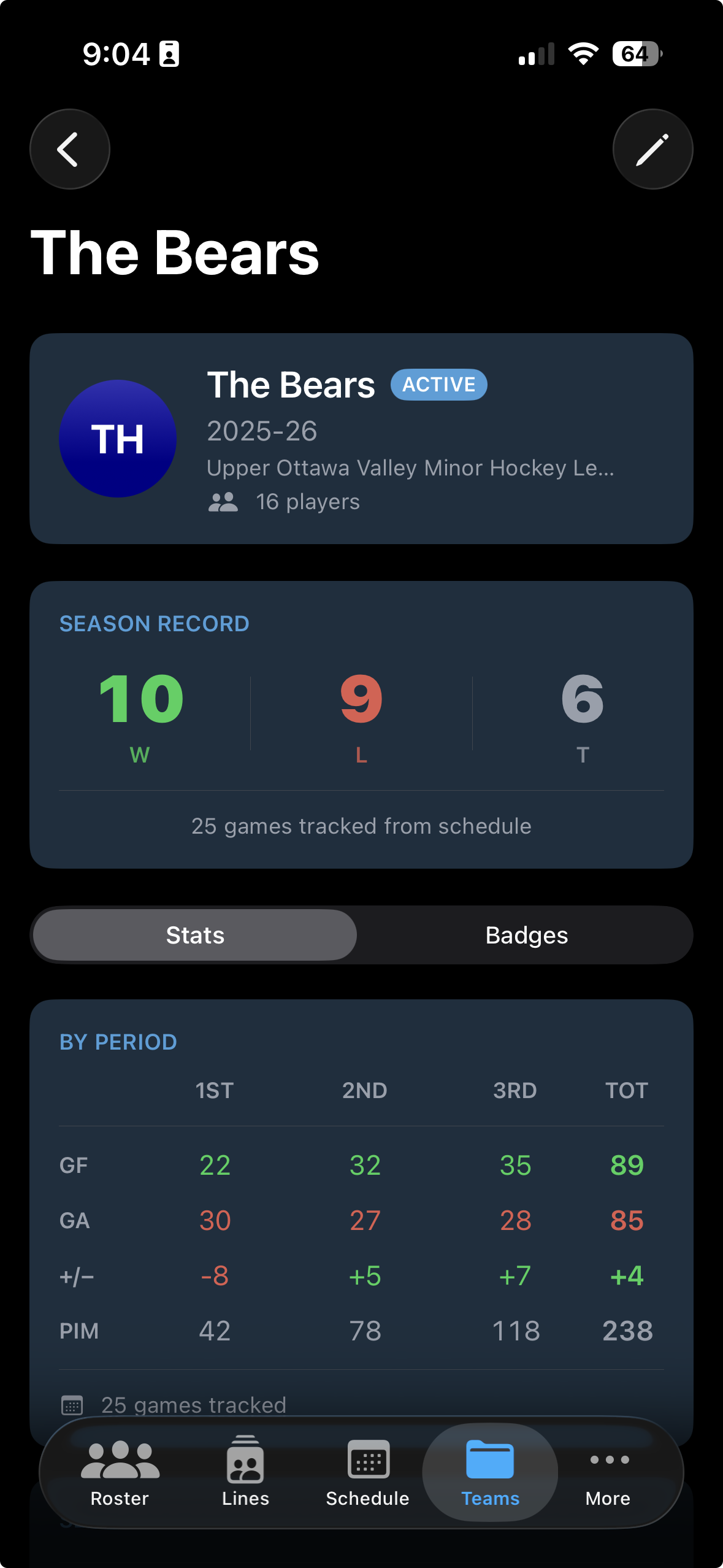
Tap the Stats tab inside a team

Open a team and tap the Stats tab to see the full season picture — goals for and against broken down by period, season averages per game, and total penalty minutes.

GF — Goals For GA — Goals Against Avg/Game PIM — Penalty Minutes
Team Stats tab showing goals by period and season averages
Step 2

Goals are broken down by period

The stats view shows goals for and against in each period separately — handy for spotting if your team tends to give up goals late or start slow.

📊 Stats are fetched automatically from Gamesheet — no manual data entry required.
Team Stats showing period breakdown
6

Achievement Badges

Step 1

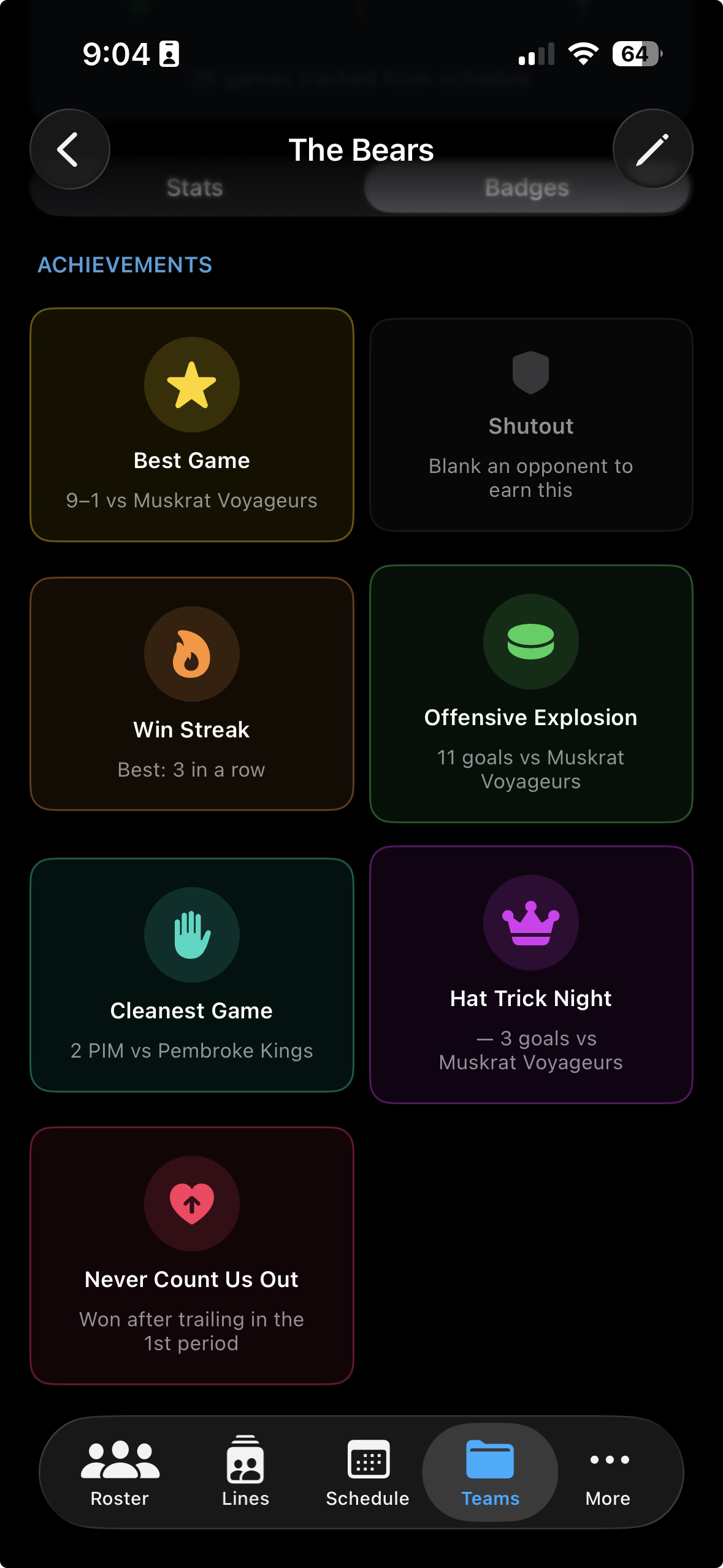
Tap the Badges tab to see earned achievements

Inside a team, tap the Badges tab. Earned badges are lit up; unearned ones appear greyed out so you can see what's still to come.

🎩 Hat Trick Game 🧹 Shutout Win 🧊 Cleanest Game 🔥 5-Game Win Streak
Badges tab showing earned and unearned achievement badges
Step 2

Badges are awarded automatically as you complete games

You don't need to do anything special — just keep completing games and Rinkside handles the rest. Badges unlock the moment a milestone is hit.

🏆 Badges are team-specific. Each of your teams has its own badge progress — a clean game for one team doesn't count for another.
Badges tab with a mix of earned and unearned badges

Ready to manage your teams like a pro?

Rinkside is currently in beta. Request TestFlight access and start building your season today.

Request TestFlight Access