Goalie Profiles

Goalie Stats

Track wins, losses, goals against, GAA, and shutouts — plus goalie-specific skill ratings and AI-powered coaching insights.

1 Finding Your Goalie 2 Details Tab 3 Stats & Report Card 4 Coaching Tab
1

Finding Your Goalie

Step 1

Open the Roster and scroll to the Goalies section

Tap the Roster tab at the bottom of the screen. Skaters are listed first — keep scrolling until you reach the Goalies section. Tap any goalie's row to open their profile.

🥅 Goalies are automatically grouped separately from skaters. You don't need to filter — Rinkside organises the roster for you.
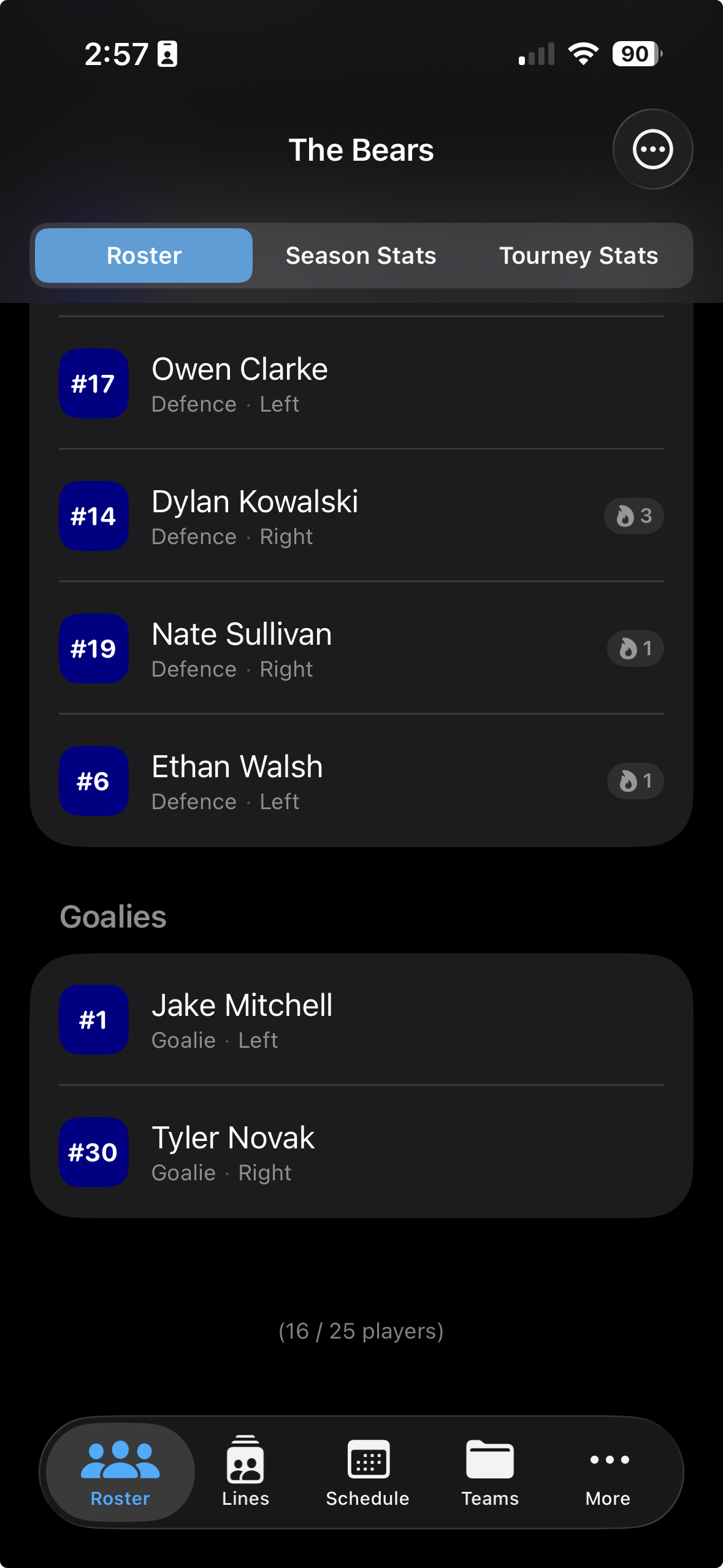
Roster list scrolled to the Goalies section showing Jake Mitchell and Tyler Novak
2

Details Tab

Step 1

Review the goalie's profile details

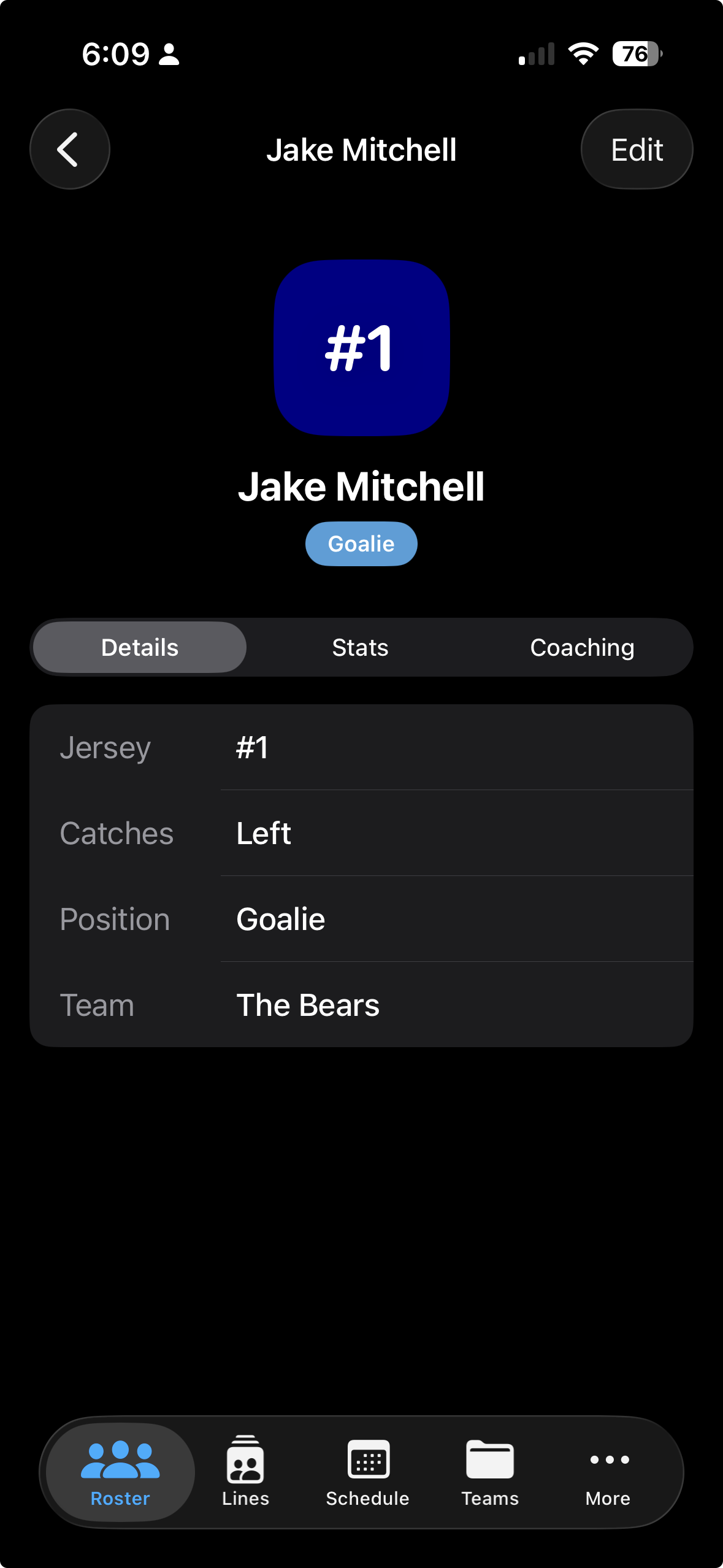
The profile opens on the Details tab, showing the goalie's jersey number, catching hand, position, and the team they're rostered on.

✏️ Tap Edit in the top-right corner to update any profile field — jersey number, catches, or team — without leaving the screen.
Goalie profile open on the Details tab showing jersey number, catches, position, and team
3

Stats & Report Card

Step 1

Tap the Stats tab to see season totals

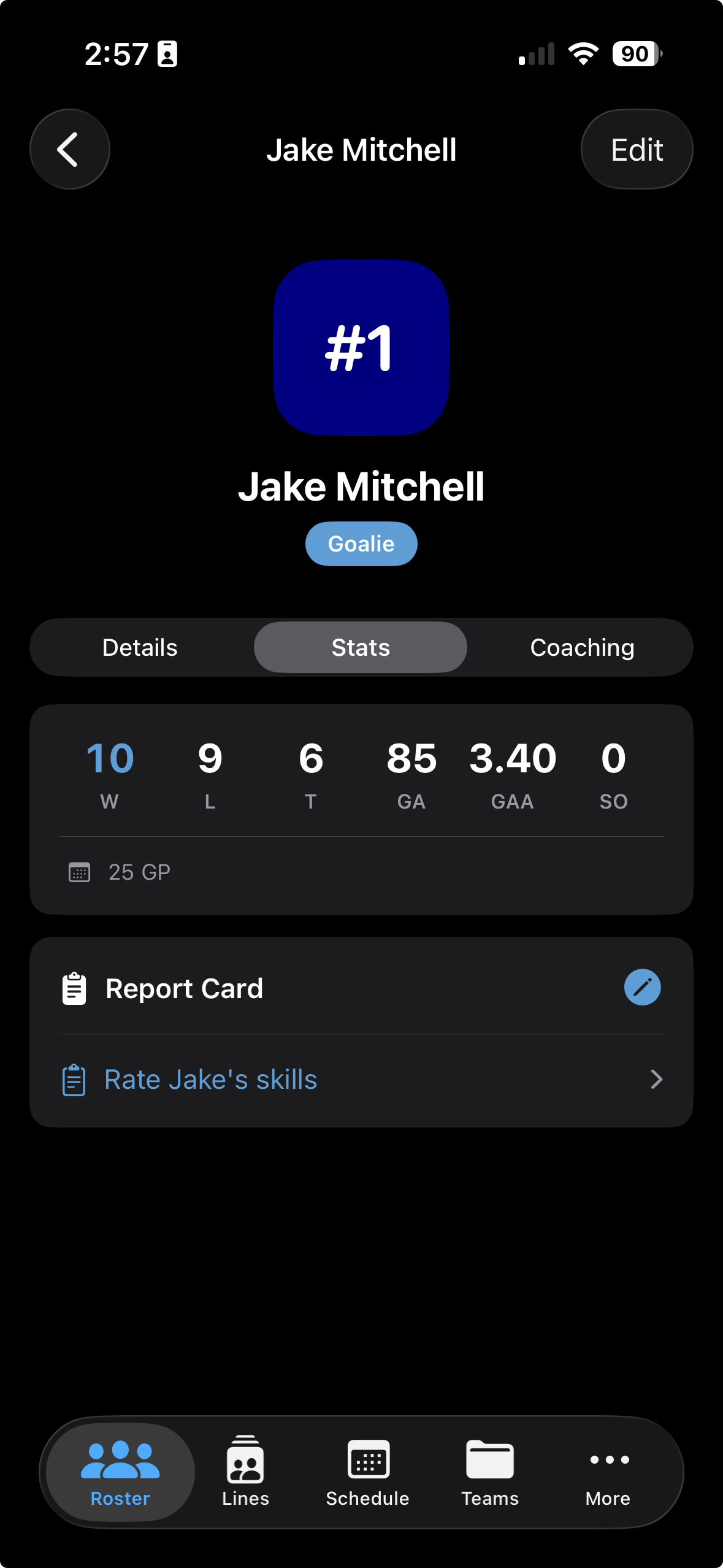
Tap the Stats tab to view the goalie stats card. All six key metrics are displayed at a glance, with games played shown below the divider.

W — Wins L — Losses T — Ties GA — Goals Against GAA — Goals Against Avg SO — Shutouts
📊 GAA is calculated automatically from total goals allowed and minutes played across all logged games — no manual entry needed.
Stats tab showing goalie stats card with W, L, T, GA, GAA, SO and 25 GP below the divider
Step 2

Tap the Report Card to rate goalie skills

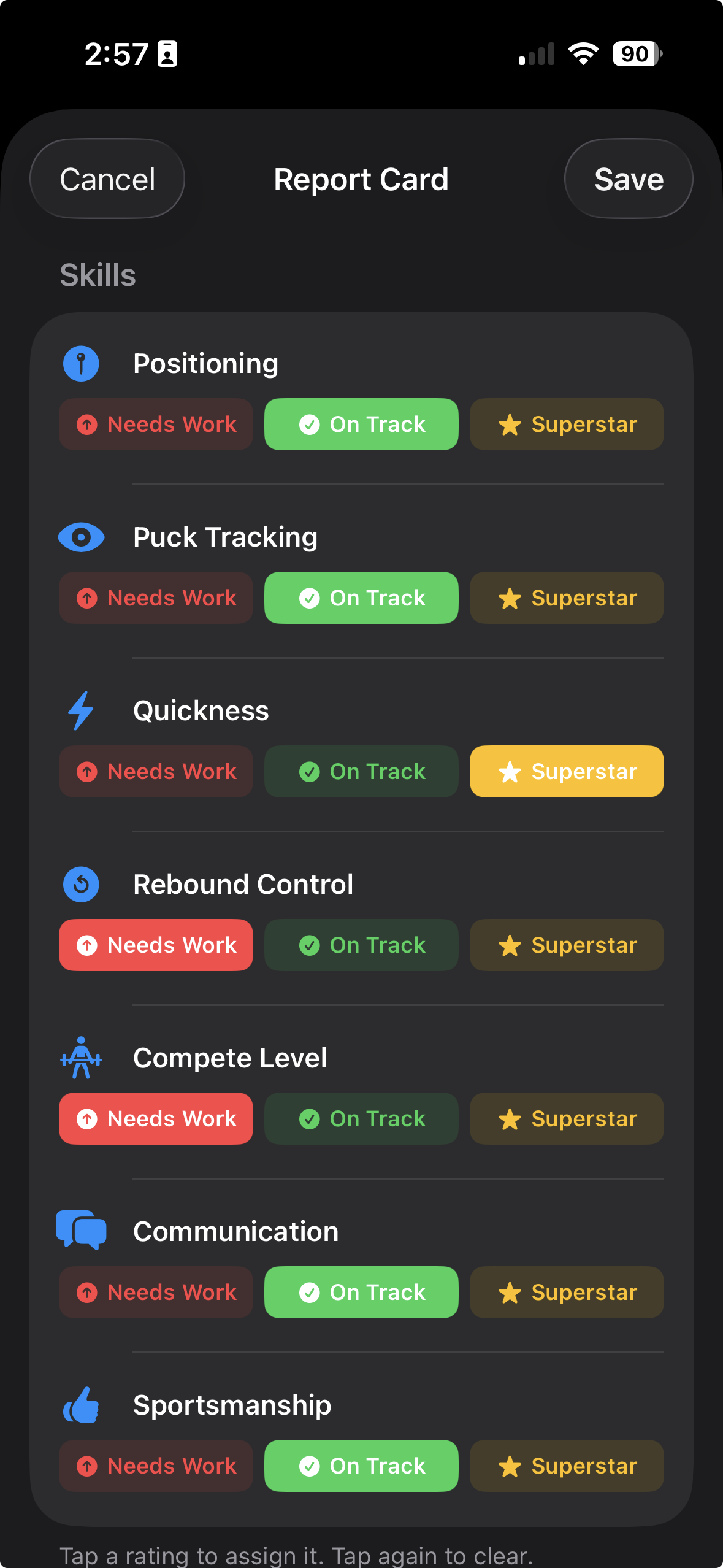
Scroll down past the stats card to find the Report Card. Tap it to open the rating sheet, then assign a rating to each goalie-specific skill area.

Needs Work On Track Superstar
💡 Goalie Report Cards cover skills like Positioning, Puck Tracking, Rebound Control, and Compete Level — tailored specifically for net-minders.
Report Card edit sheet showing goalie skill categories with Needs Work, On Track, and Superstar rating buttons
Step 3

Review ratings inline on the Stats tab

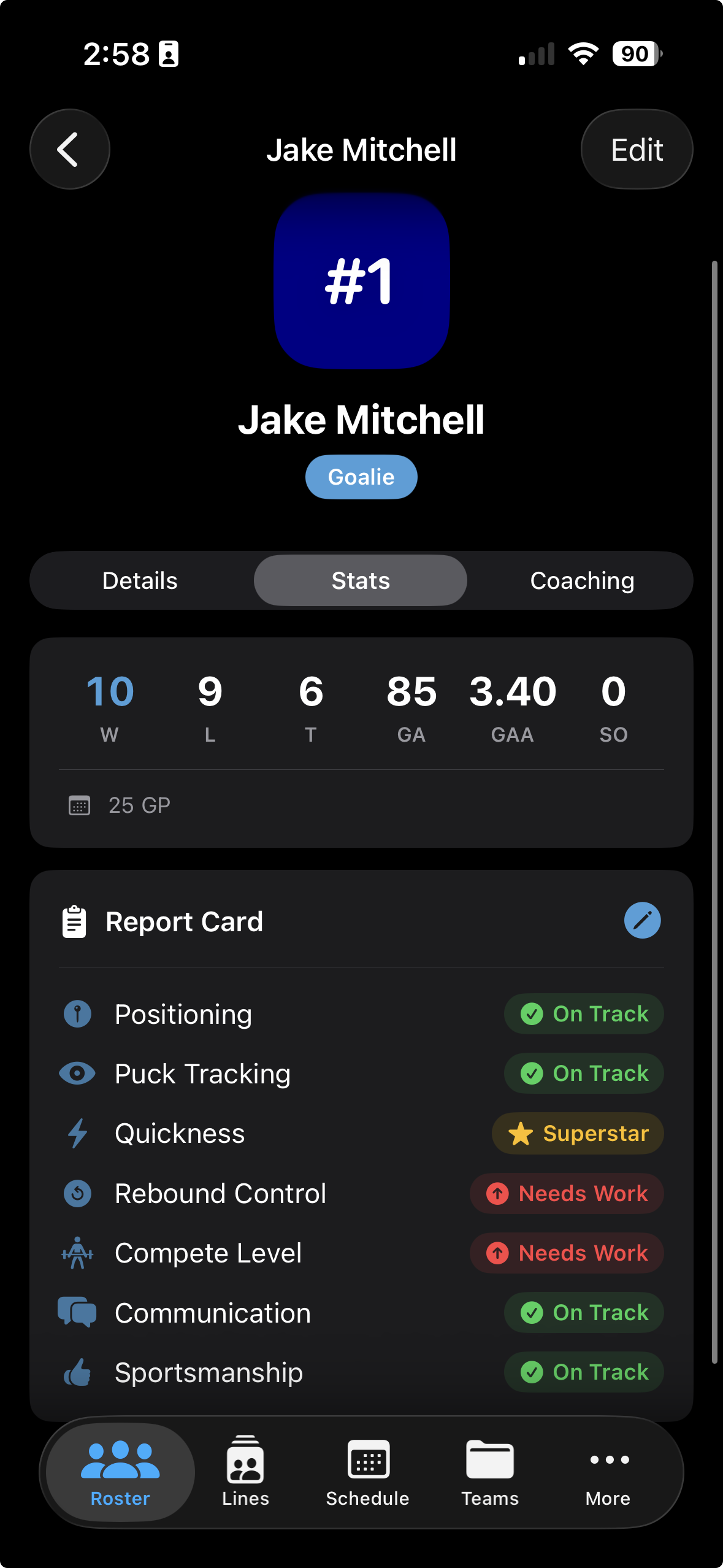
Once rated, each skill shows its current status directly on the Stats tab — so you always have a full picture of stats and development in one place. Tap the Report Card at any time to update a rating.

🔒 Ratings are private to you as the coach and feed directly into the Coaching tab's AI-generated insights.
Stats tab showing completed Report Card with skill ratings displayed inline
4

Coaching Tab

Step 1

Tap the Coaching tab for AI-generated insights

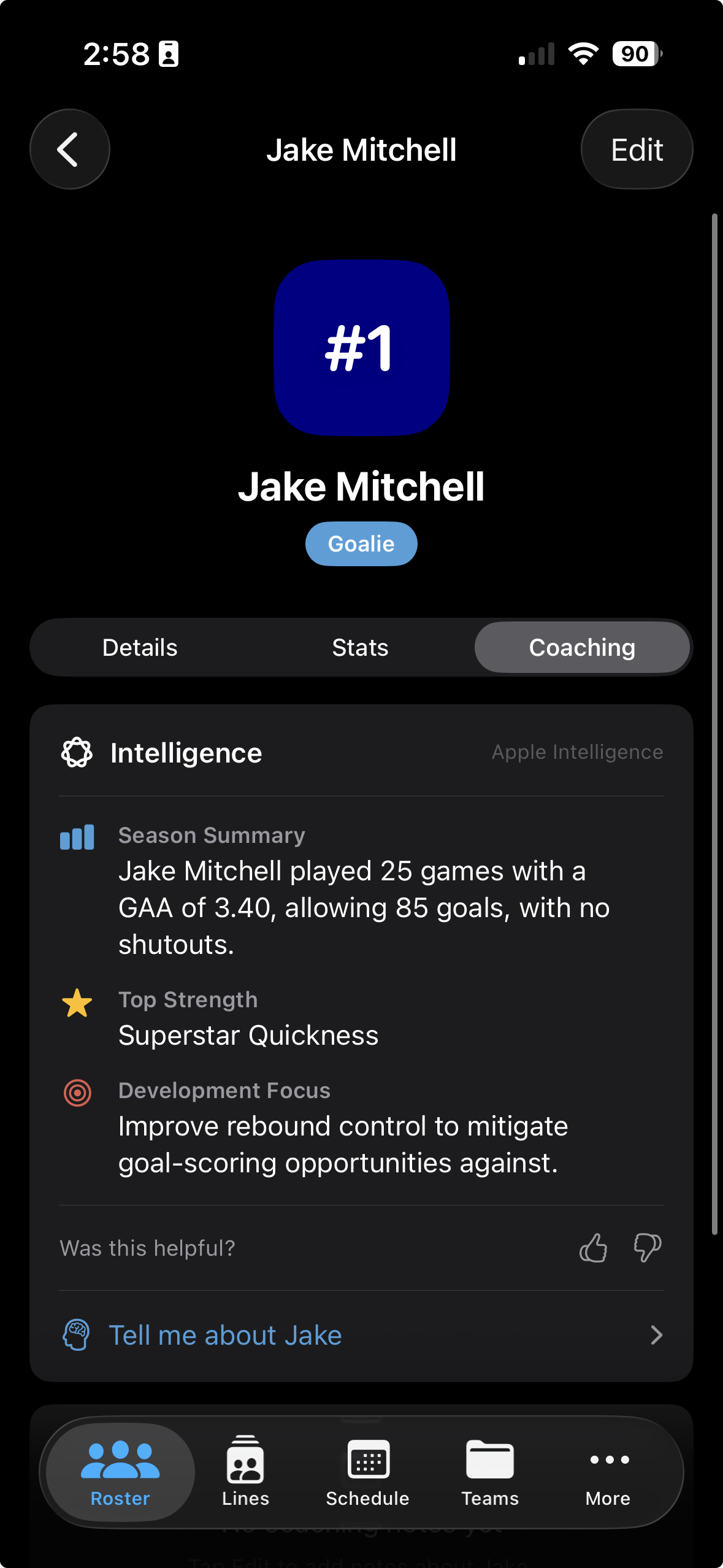
The Coaching tab uses on-device Apple Intelligence to surface personalised insights based on your goalie's season stats and Report Card ratings. Each summary includes a season overview, a top strength, and a development focus to guide your next practice conversation.

🤖 Apple Intelligence runs entirely on-device — no data leaves your phone. Insights are available on iPhone 15 Pro and later and update as you log more games and refresh ratings.
Coaching tab showing Apple Intelligence season summary, top strength, and development focus for a goalie
Step 2

Add your own coaching notes

Below the Apple Intelligence section you'll find a free-text Coaching Notes field. Use it to capture observations from practice or after a tough game — anything worth remembering before your next chat with the goalie or their parents.

📝 Notes are saved locally on your device and are always available offline — even without a network connection at the rink.
Coaching tab with coaching notes field below the AI insights

Ready to track your goalie's season?

Rinkside is currently in beta. Request TestFlight access and start building your goalie's stats profile today.

Request TestFlight Access