Gameday Mode

Running a Game

Everything you need to coach from the bench — score, shots, lines, shifts, penalties, and scratches, all in one place.

1 Score Tracker 2 Shot Tracker 3 Game Lineup 4 Shift Timer 5 Penalty Timer 6 Gameday Roster
1

Score Tracker

Step 1

Open Gameday Mode from the More tab

Tap More in the bottom-right of the tab bar, then tap Gameday from the list. The Score Tracker opens and you're ready to go — your team is on the left, opponent on the right.
More tab showing Gameday option
Step 2

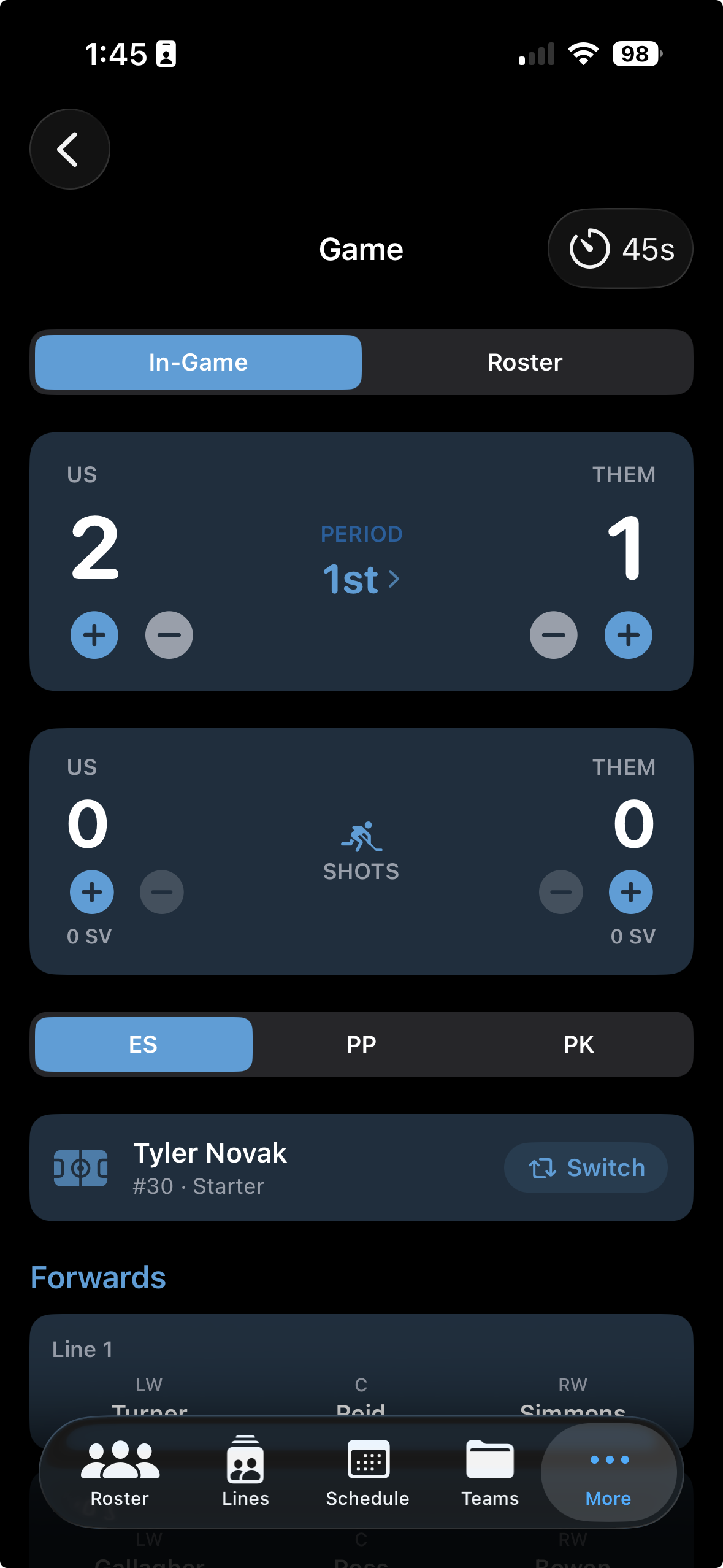
Tap + to update the score after each goal

Hit the + button under your team or the opponent whenever a goal is scored. The score updates instantly and is saved locally — no network required.

Score tracker showing score and period controls
Step 3

Advance the period using the period control

Tap the period indicator between the scores to move from 1st → 2nd → 3rd → OT. Rinkside keeps the current period in sync across Score Tracker, Shot Tracker, and the Shift Timer.
Period control on score tracker
2

Shot Tracker

Step 1

Switch to the Shot Tracker panel

Scroll down on the Gameday screen to see the Shot Tracker. Shot counts are tracked for both teams.

Shot tracker showing shot counts
Step 2

Tap + to count every shot on net

Tap the + button for your team or the opponent each time a shot hits the goalie. Rinkside tallies the total for the full game.

Shot count being incremented
Step 3

Saves are calculated from shots and goals

Rinkside calculates your goalie's saves automatically — shots faced minus goals allowed. The save count updates in real time as you log shots and goals during the game.

Save percentage calculated from shot data
3

Game Lineup

Step 1

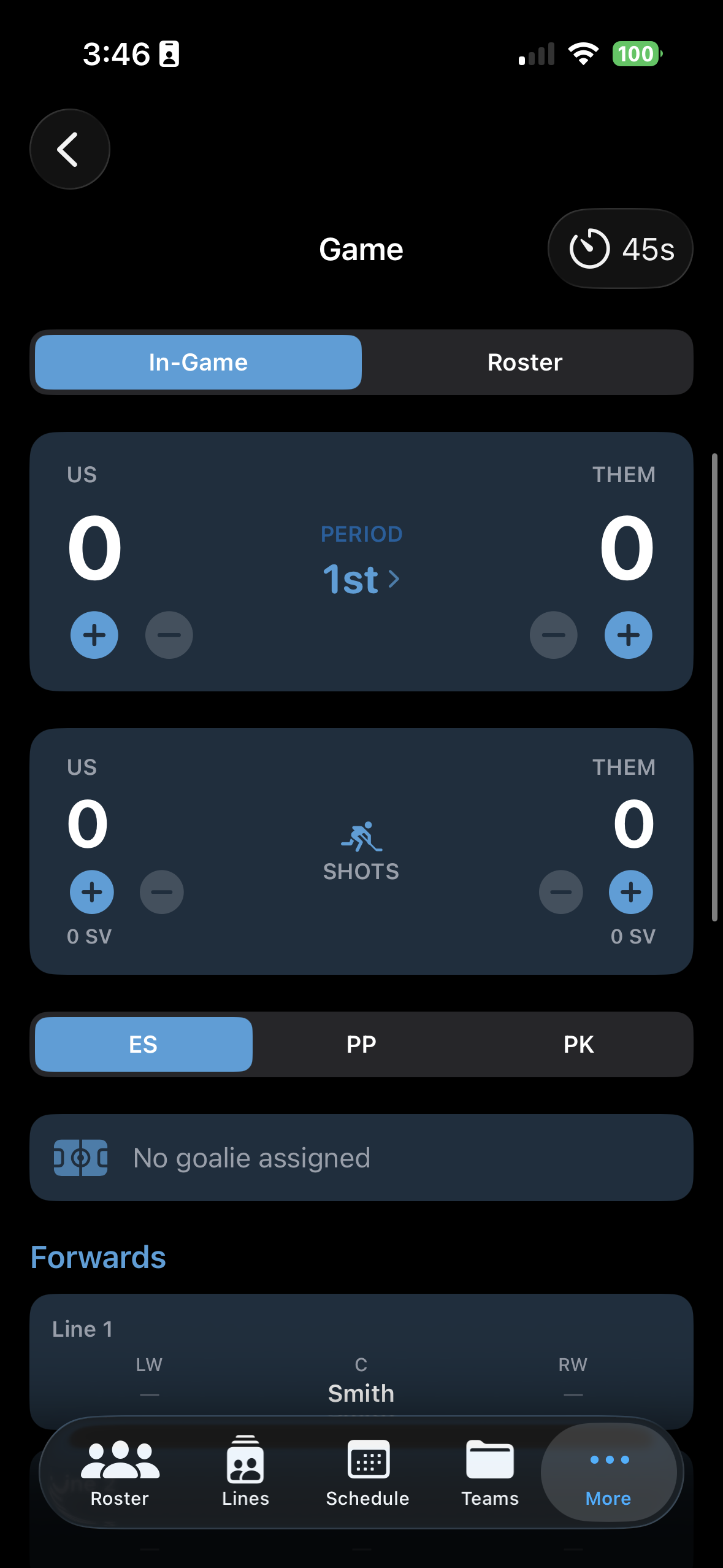
Set your starting goalie before puck drop

In the Game Lineup panel, tap Starting Goalie and select who's in net. The starting goalie is highlighted throughout Gameday Mode and their stats are tracked from the first shot.

Gameday mode showing game lineup
Step 2

Review your even-strength lines

Your pre-built forward lines and defensive pairs appear here exactly as you set them up. Tap any slot to make a quick substitution during the game without leaving Gameday Mode.

✏️ Changes made during a game are saved to the gameday snapshot — your pre-game lineup is preserved untouched.
Even-strength lines in game lineup
Step 3

Switch to your PP or PK unit when needed

Tap Power Play or Penalty Kill to pull up your special teams units. Each unit shows the five players on ice — tap any name to swap in a replacement on the fly.

Special teams units include PP1, PP2, PK1, and PK2 — build them in the Lines tab before game day.
Special teams units in game lineup
4

Shift Timer

Step 1

Set your target shift length before the game

Tap the dropdown in the top-right corner of the Gameday view to set your target shift length (e.g. 45 seconds). Rinkside will alert you when shifts are running long.

⏱️ Most minor hockey coaches run 45–60 second shifts for younger players, 60–75 seconds for competitive age groups. Adjust to match your system.
Shift timer with shift length settings
Step 2

Tap a line when it hits the ice

As your line jumps over the boards, tap the line to start its timer. The timer counts up and turns amber when you're approaching your target shift length.

Shift timer running with start/stop controls
Step 3

Tap the line again to stop the timer

When the line changes, tap the line again to stop its timer. The shift duration is logged and the shift counter increments. The timer resets automatically, ready for the next change.

📈 The shift counter tracks how many times each line has been out. Check it at the end of periods to make sure you're distributing ice time evenly.
Shift counter showing completed shifts
5

Penalty Timer

Step 1

Open the Penalty Timer when a penalty is called

Tap the Penalty button in Gameday Mode to open the Penalty Timer. The timer is set to 2 minutes.

Penalty timer UI
Step 2

Tap Start and the countdown begins immediately

Tap Start to kick off the 2-minute countdown. The penalty timer runs on screen so you always know exactly how long is left in the box — no mental math required.

🚨 You can track multiple penalties at once — add a new timer for each player in the box.
Penalty timer counting down
Step 3

Timer stops when it hits zero

When the penalty expires, the timer stops at zero and the player is back on the ice.

Penalty timer expired state
6

Gameday Roster

Step 1

Open the Gameday Roster to mark scratches

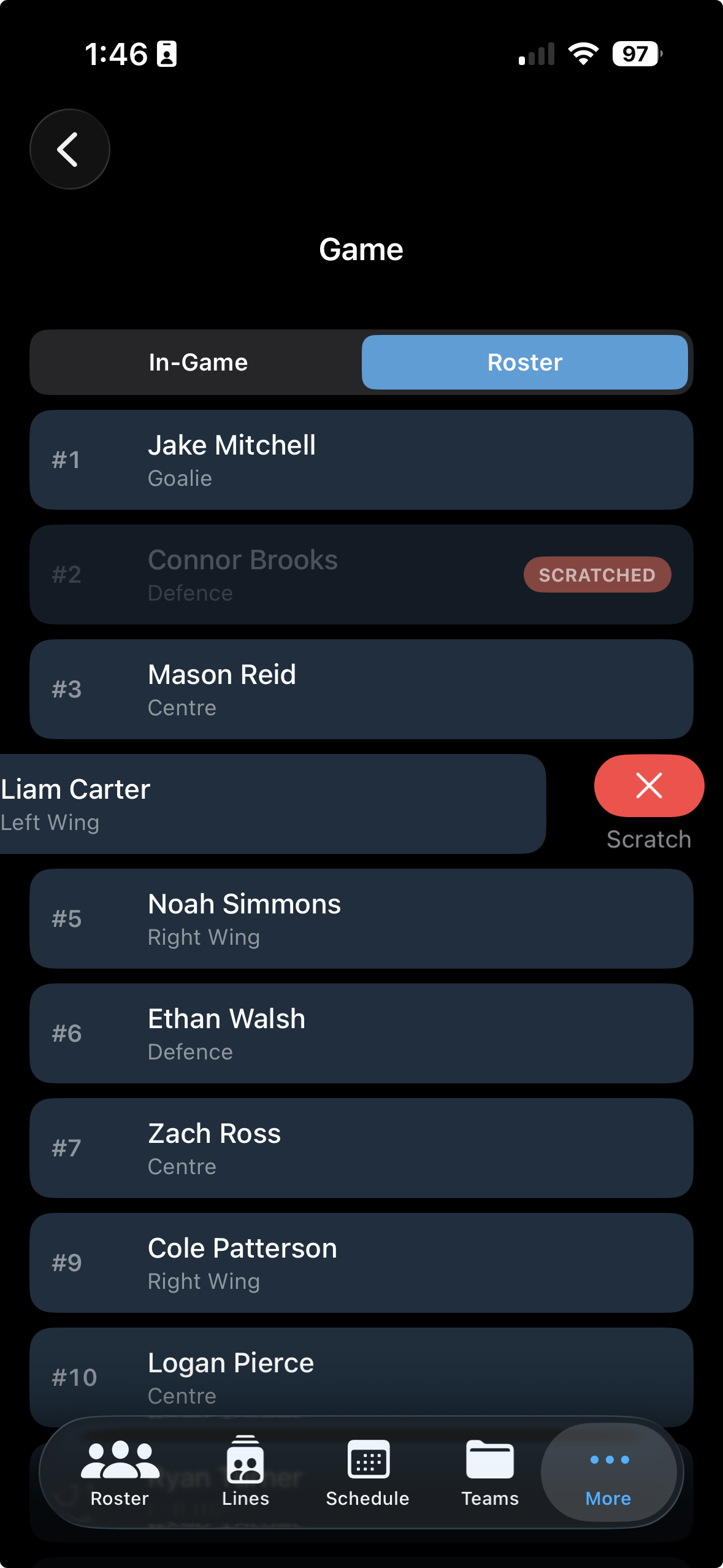
Tap Gameday Roster in the Gameday Mode menu. Your full team roster appears with every player active by default. Swipe left on a player and tap Scratch to mark them out for today's game.

Gameday roster with player list
Step 2

Scratched players are removed from game lines

Once scratched, the player is immediately removed from all game line slots — even-strength, power play, and penalty kill. Open slots are highlighted so you can fill them quickly before puck drop.

🔄 Scratches only affect today's game. Your full lineup is restored automatically for the next game — no manual cleanup needed.
Scratched players removed from game lines
Step 3

Reinstate a player if they become available

If a scratched player is cleared to play, swipe left on their name and tap Activate. They're immediately available to be slotted back into your lines without any data loss.

Late scratch? You can update the Gameday Roster right up until puck drop — or even mid-game if a player gets injured and needs to come out.
Player being reinstated from scratch

Ready to coach your next game?

Rinkside is currently in beta. Request TestFlight access and take Gameday Mode to the bench.

Request TestFlight Access