For Parents & Fans

Fan Mode Setup

Switch to Fan Mode, add your player, link their team via GameSheet, and start following their schedule and stats.

1 Switch to Fan Mode 2 Add a Player 3 Find Your League 4 Schedule & Stats
1

Switch to Fan Mode

Step 1

Open the Mode tab and switch to Fan Mode

Tap the Mode tab at the bottom of the screen. You'll see a switcher with two options — Coach Mode and Fan Mode. Tap Fan Mode to switch.

💡 You can switch back to Coach Mode at any time from the same tab. Your coach data and fan data are kept completely separate.
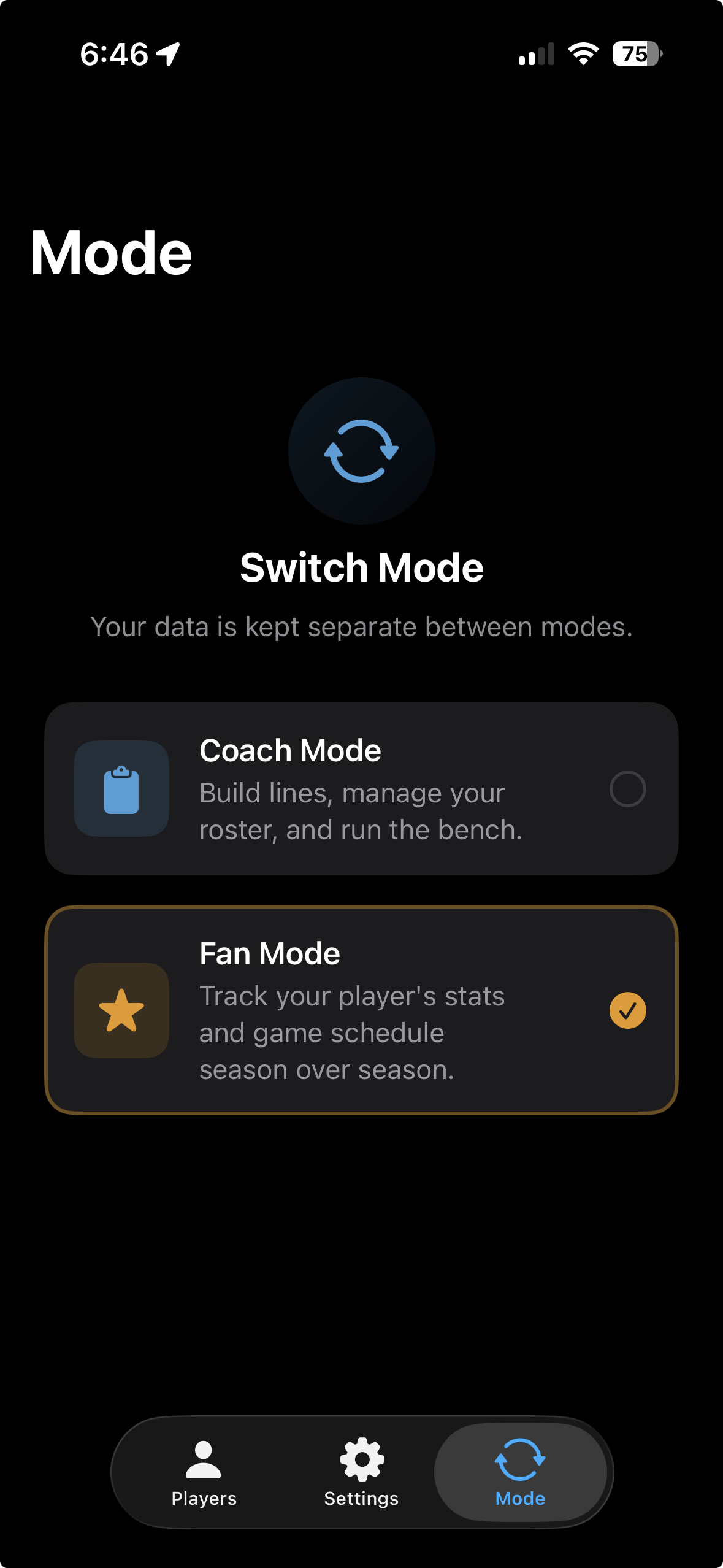
Mode tab showing Coach Mode and Fan Mode switcher
Step 2

Complete the Fan Mode onboarding

A short 2-page carousel walks you through what Fan Mode offers. Swipe through both pages, then tap Get Started to continue.

👋 Onboarding only appears the first time you switch to Fan Mode — you won't see it again on future opens.
2

Add a Player

Step 3

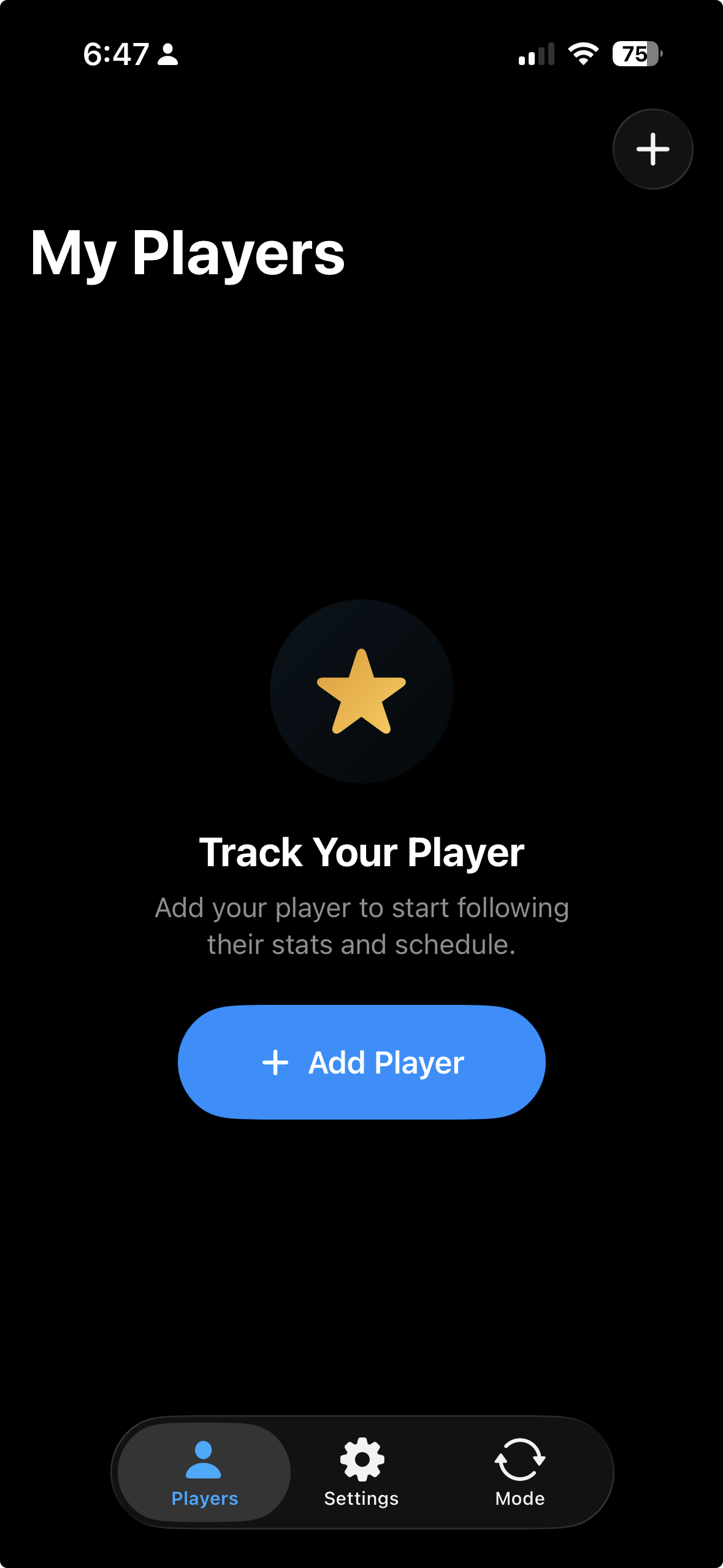
Tap "Add Player" from the empty state

The My Players screen starts empty. Tap the Add Player button to open the player setup wizard.

My Players empty state with Add Player button
Step 4

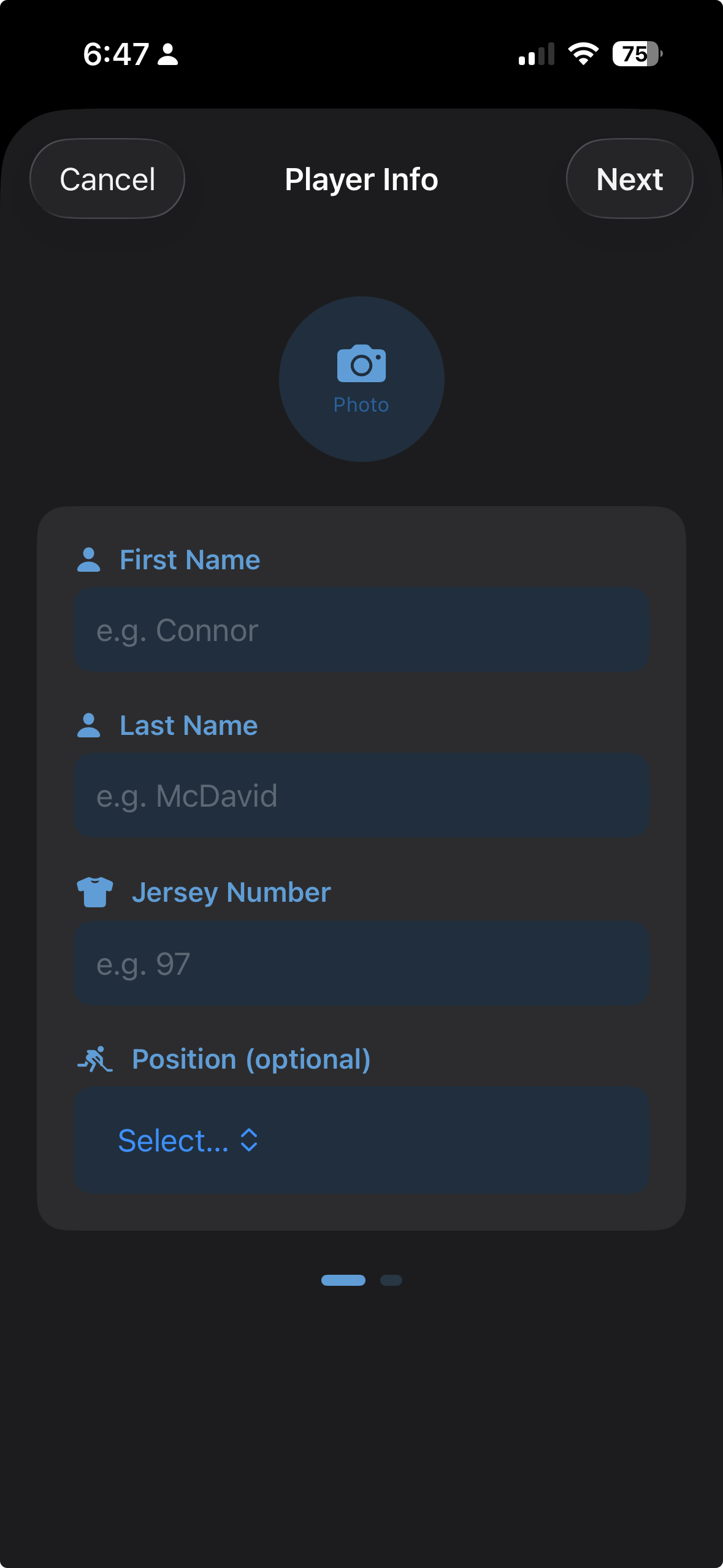
Enter the player's info

Fill in their first name, last name, and jersey number. Optionally add their position and a photo. Tap Next when you're ready.

📸 Adding a photo helps you quickly identify your player at a glance — but it's entirely optional.
Add Player sheet showing name, jersey number, position, and photo fields
3

Find Your League

Step 5

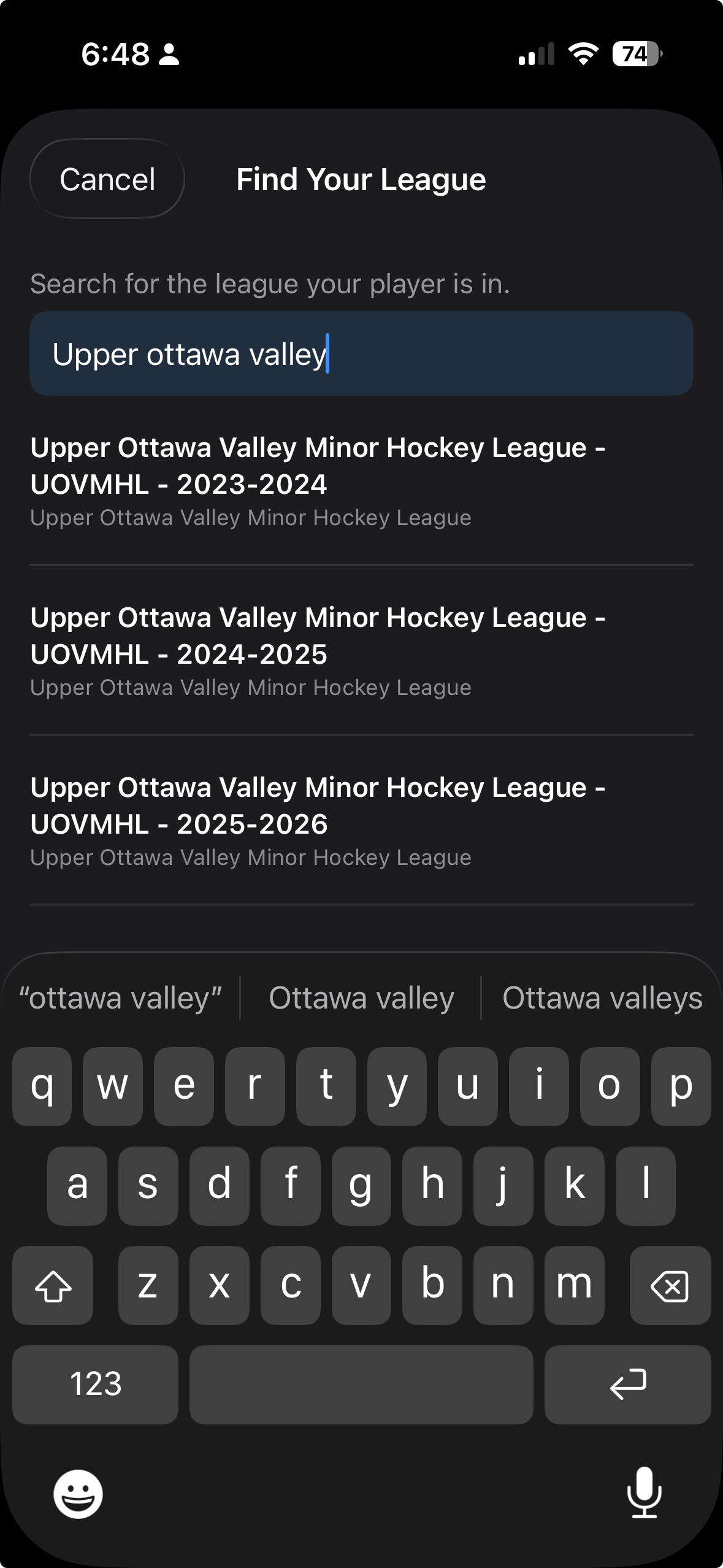
Search for your league by name

Type your league's name into the search field — for example "Greater Toronto Hockey League". Matching leagues appear as you type. Tap yours to continue.

🔍 Not finding your league? Try a shorter search term or check that your league uses GameSheet for game reporting.
League wizard search screen with results list
Step 6

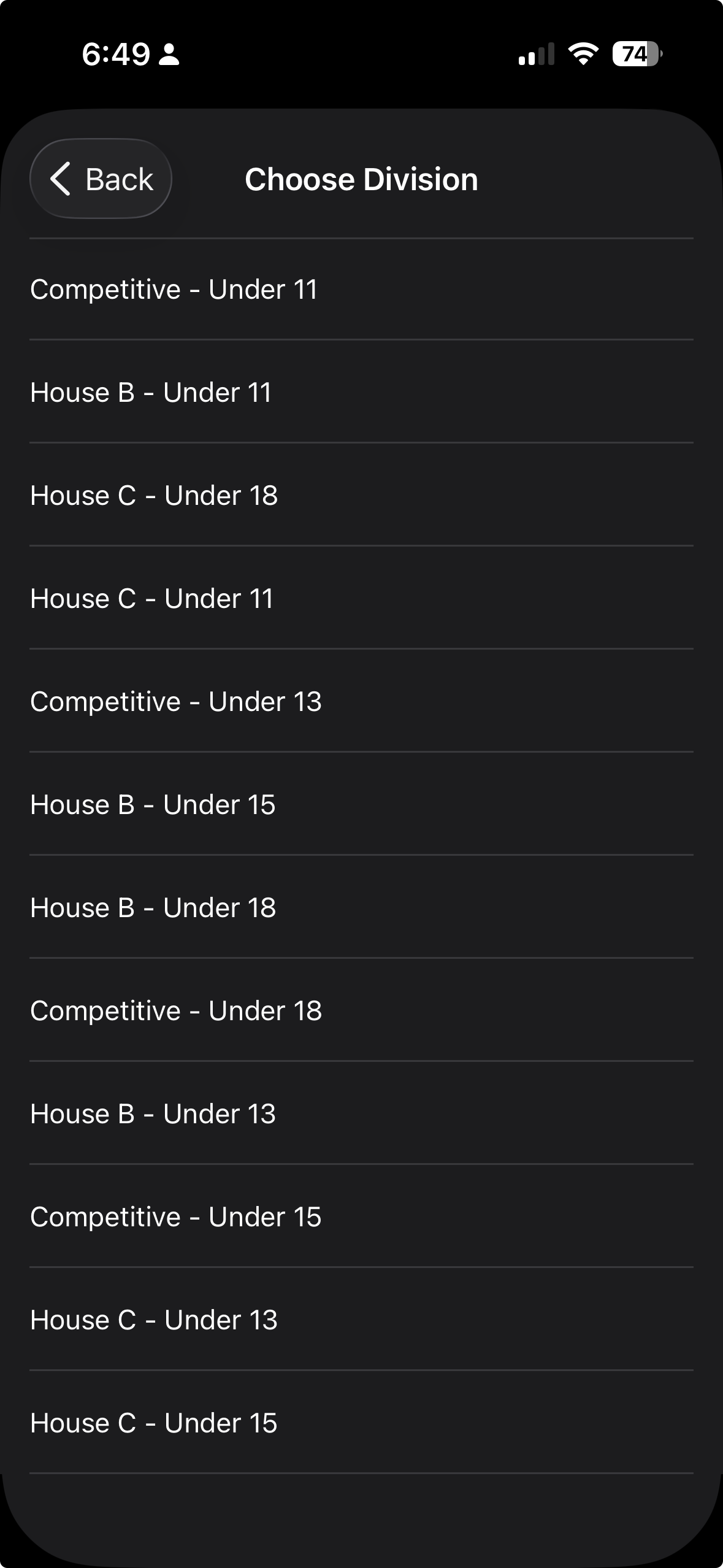
Choose your division

After selecting a league, you'll see a list of its divisions. Tap the one that matches your player's age group and level.

League wizard division picker
Step 7

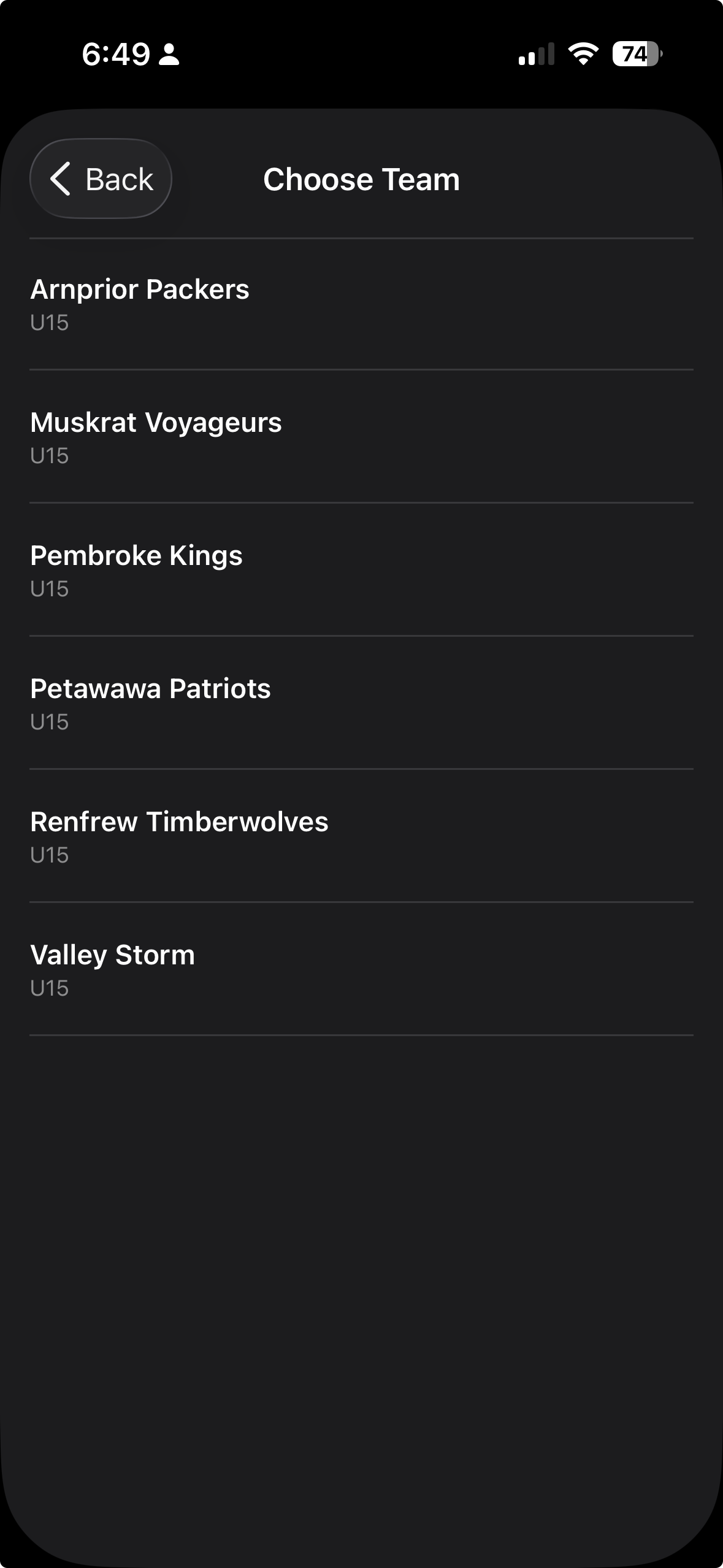
Choose your player's team

A list of teams in that division appears. Tap your player's team to move to the final confirmation step.

League wizard team picker
Step 8

Confirm the jersey number

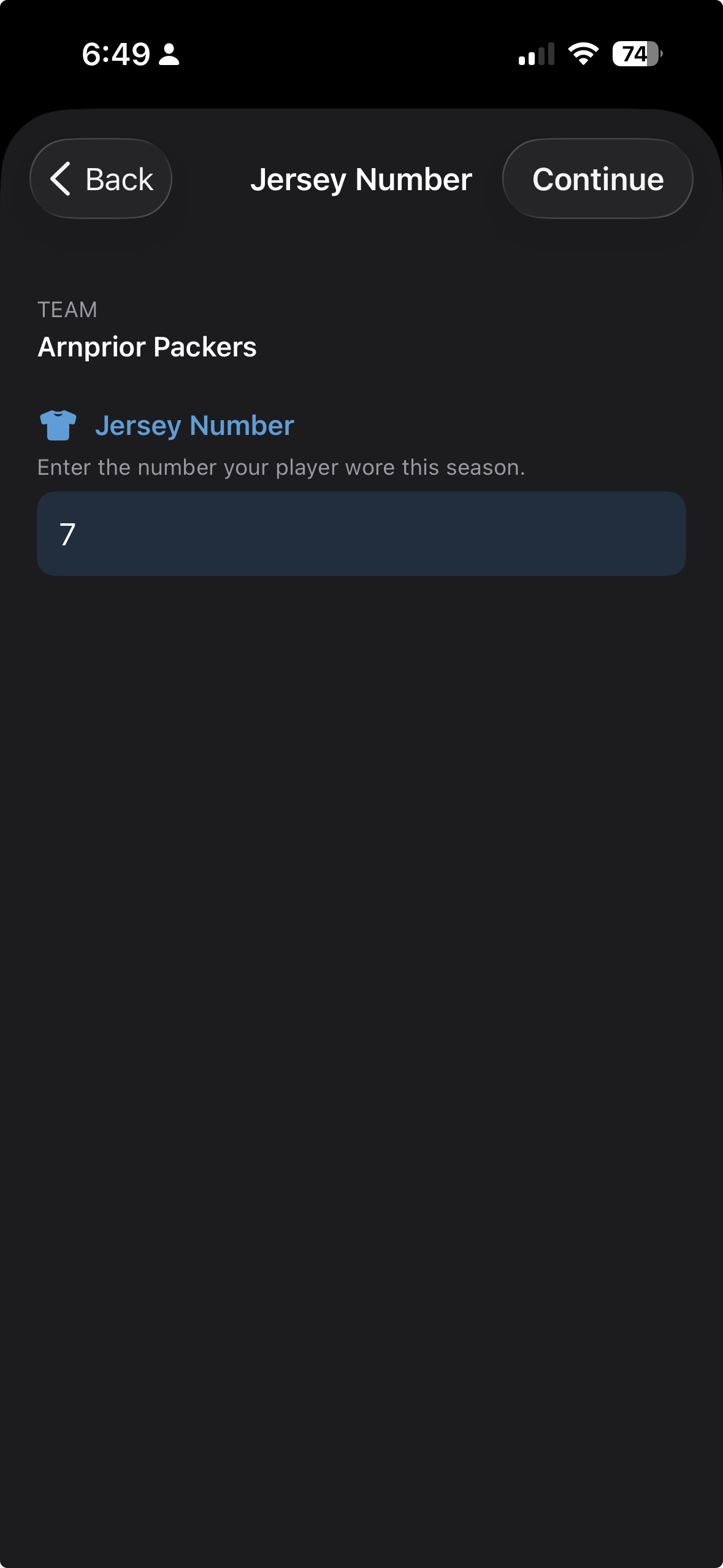
Rinkside shows the jersey numbers on the team's GameSheet roster. Confirm your player's number to complete the link. If the number was updated, you can correct it here.

🏒 Jersey numbers are used to match your player to the correct game stats — make sure it matches the number they wear this season.
League wizard jersey number confirmation screen
4

Schedule & Stats

Step 9

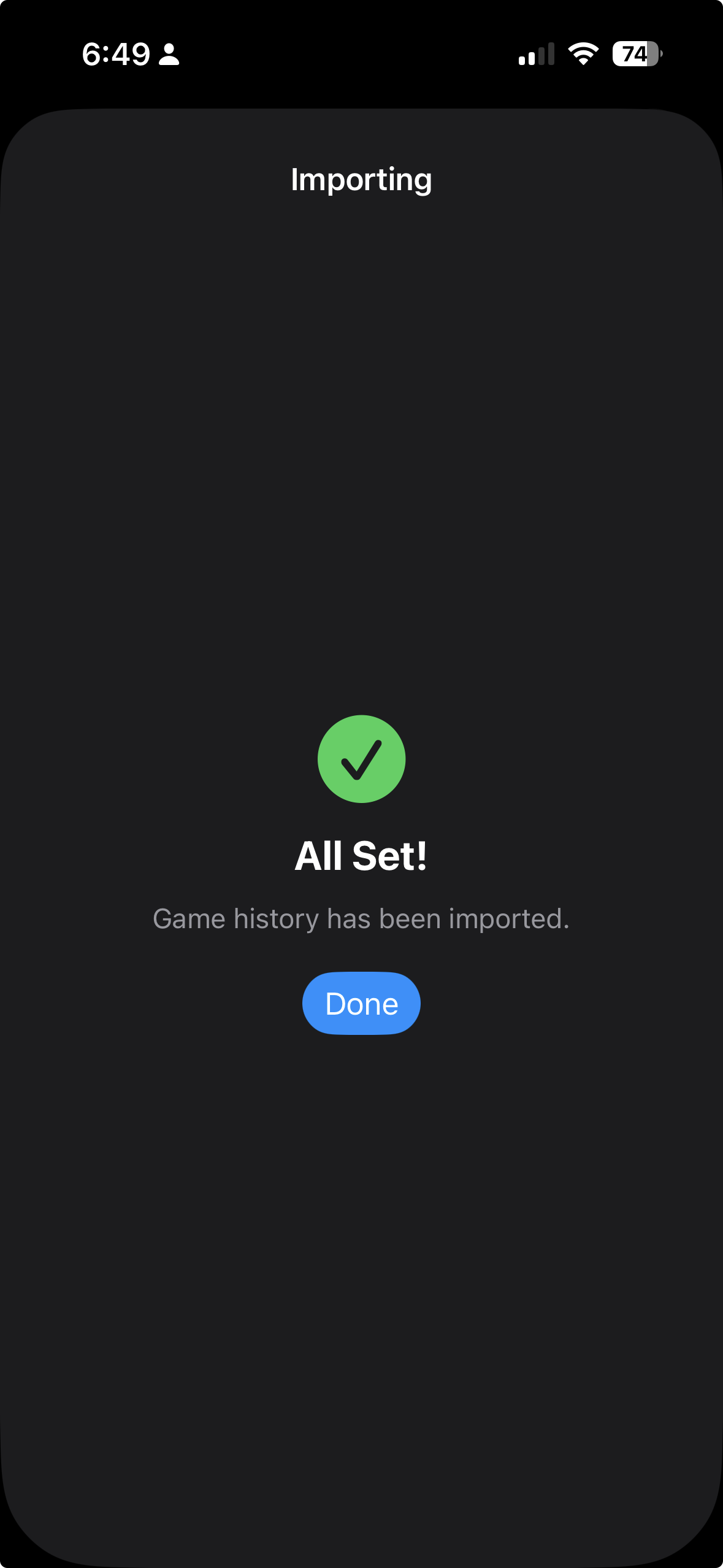
Wait while game history is imported

Rinkside fetches your player's game history from GameSheet. A progress bar shows how far along the import is — this usually takes just a few seconds.

The app only needs to do this full import once. After that, new game results sync automatically in the background.
Import in progress with linear progress bar and percentage
Step 10

Browse the Schedule tab

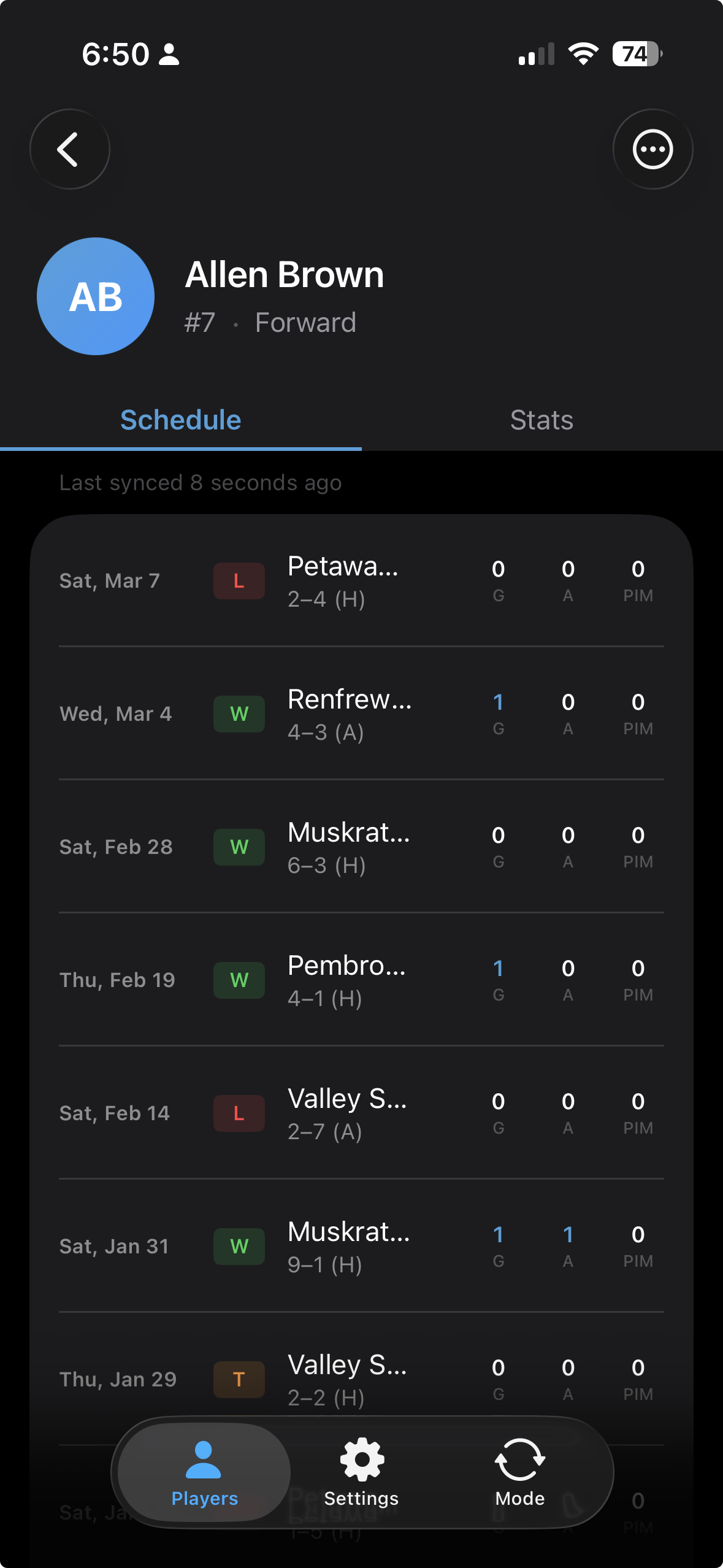
The Schedule tab shows every game played this season — each row includes the result badge, score, date, and your player's per-game performance.

W — Win L — Loss T — Tie
📅 Per-game G, A, and PIM are shown on each row so you can see exactly how your player performed in every game.
Player detail Schedule tab showing game rows with W/L/T badge, score, and per-game G/A/PIM
Step 11

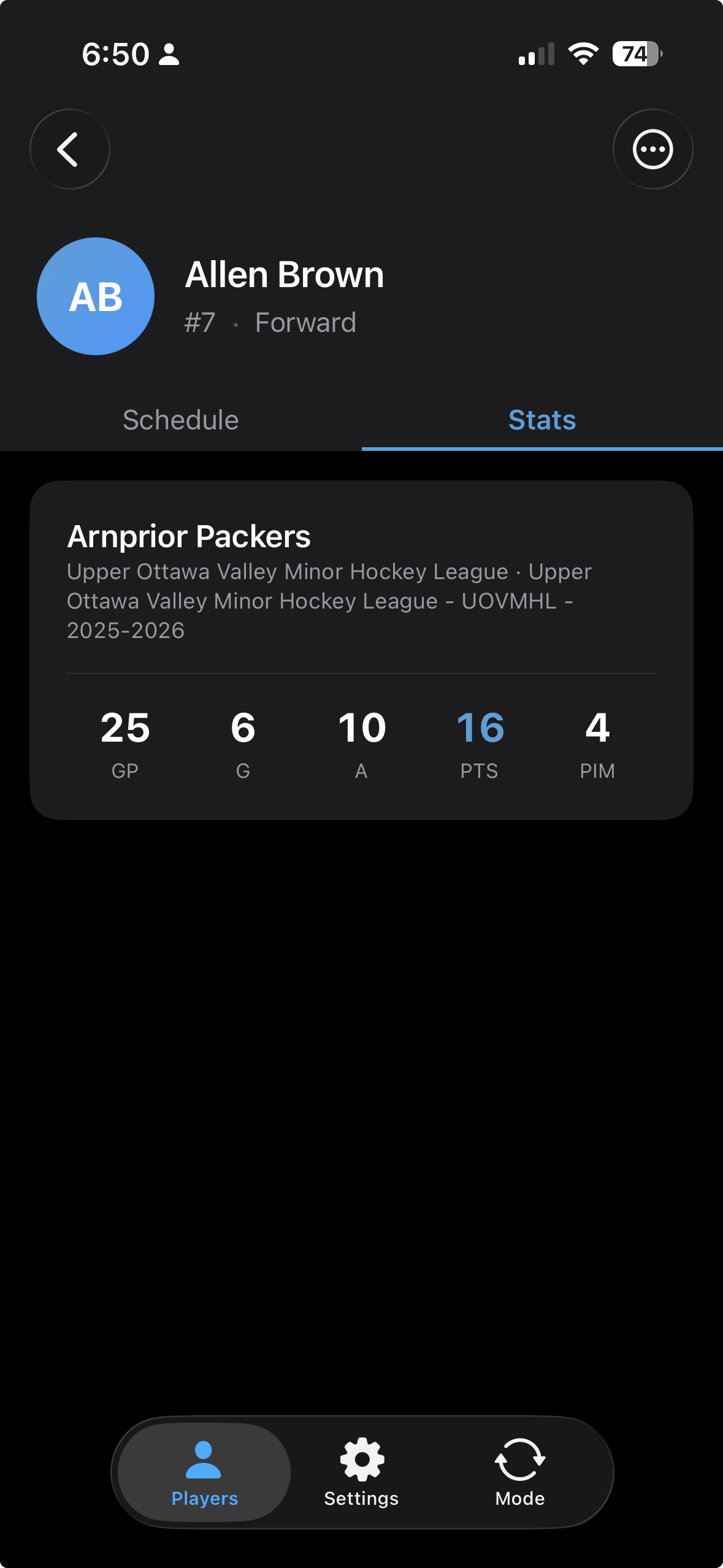
View season totals on the Stats tab (skaters)

Tap the Stats tab to see your skater's season-long totals at a glance, plus a year-over-year comparison table showing how this season stacks up against previous ones.

GP — Games Played G — Goals A — Assists PTS — Points PIM — Penalty Minutes
Player detail Stats tab showing skater season totals card and year-over-year table
Step 12

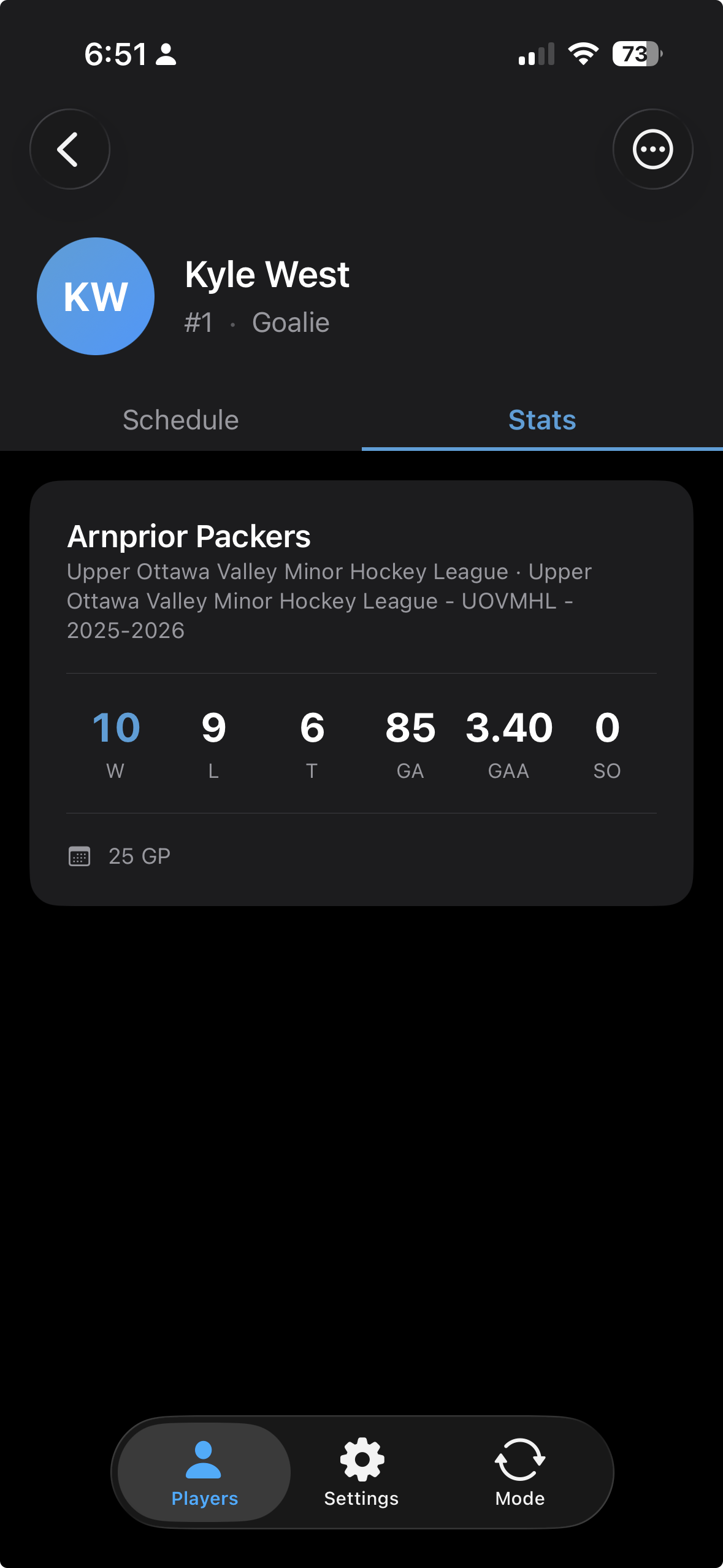
Goalie stats show saves and averages

For goalies, the Stats tab displays a different set of season totals focused on net performance, along with the same year-over-year comparison table.

GP — Games Played W — Wins L — Losses T — Ties GA — Goals Against GAA — Goals Against Avg SO — Shutouts
🥅 GAA is automatically calculated across all games — no manual entry needed.
Player detail Stats tab showing goalie season totals card and year-over-year table

Ready to follow your player all season?

Rinkside is currently in beta. Request TestFlight access to get started.

Request TestFlight Access